 scenvas.
Multi-monitor wallpapers: separate scenes or one spanning view
Keep your main display focused and give your second screen its own scenery. Choose a layout that suits the arrangement and shape of your monitors.
A scene for every screen.
Extend your scenery across multiple displays. Span one image or choose a different wallpaper per screen. Try both in the preview.
- Span displays
- Fit different aspect ratios
- Configure each display
 DISPLAY 01
 DISPLAY 02
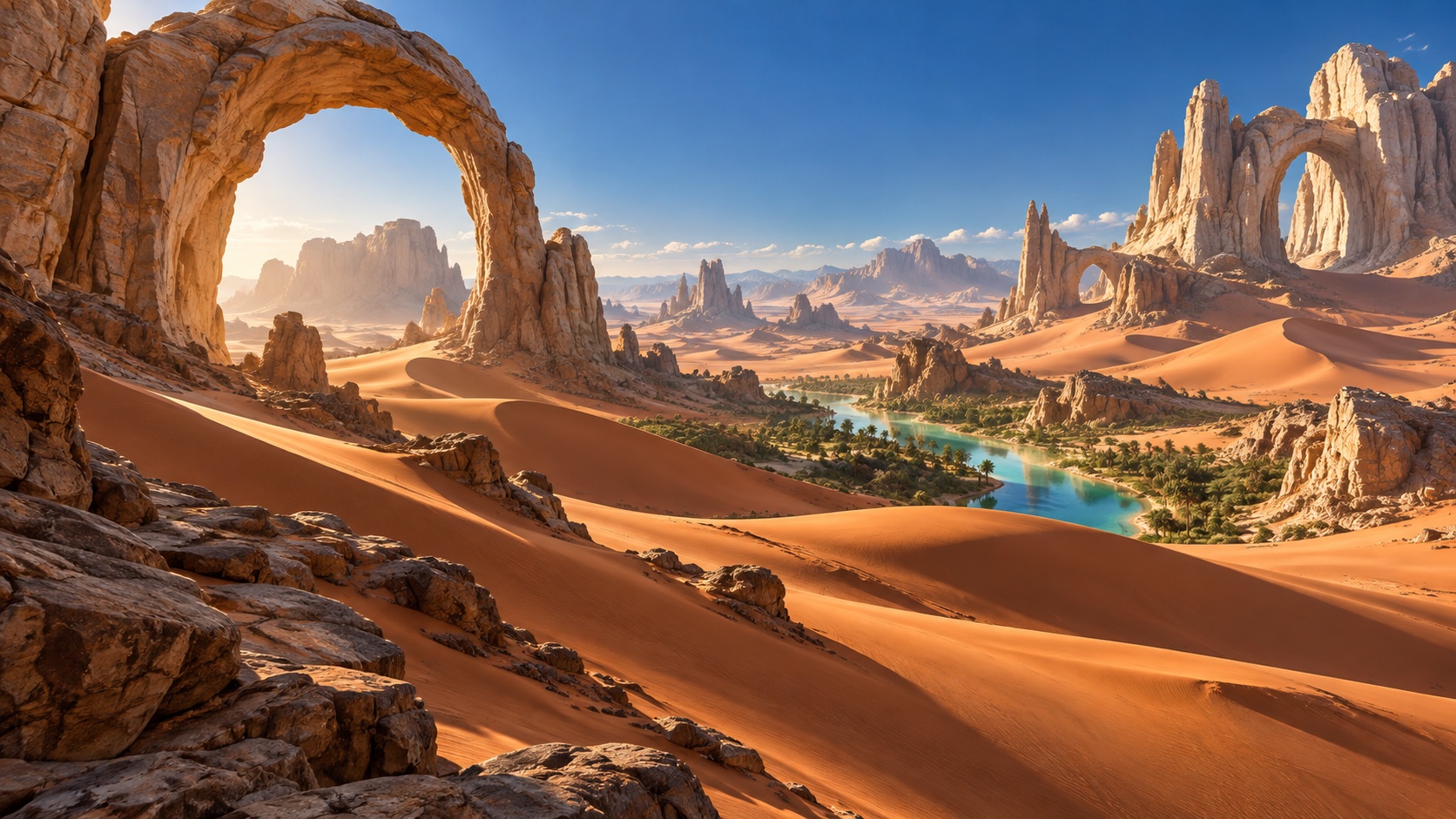
Every screen has its own scene.
A different scene on each display
Select a specific display before applying a wallpaper. This works well when your main and secondary screens serve different purposes, or when you combine landscape and portrait monitors. Check the display name to avoid updating the wrong screen.
One scene across multiple screens
Spanning depends on your physical monitor layout. Differences in height, scaling or aspect ratio can crop the scene. A standard 16:9 wallpaper is not automatically a good fit for a very wide combined desktop.
Balance clarity and playback load
Choose content for the target resolution and preview the subject's position. Several high-resolution videos can increase playback load, so a single-display result should not be treated as a multi-display performance guarantee.
How to get started
- Check monitor arrangement and scaling in your operating system's display settings.
- Choose individual or spanning mode and the target display in Scenvas.
- Apply the wallpaper and inspect each screen, including after reconnecting an external display.
Questions and answers
Can I use one wallpaper on portrait and landscape screens?
You can try, but cropping may hide the subject. Selecting a suitable scene for each aspect ratio is often a better fit.
Why is only one screen playing?
Check that screen's selected wallpaper, playback state and local file. Select the display again before reapplying. The help page includes a troubleshooting sequence.