 scenvas.
Create AI image and video wallpapers from a description
Turn an imagined scene into a personal desktop. Use the web studio to create and organise your work, then the desktop app to download and play it.
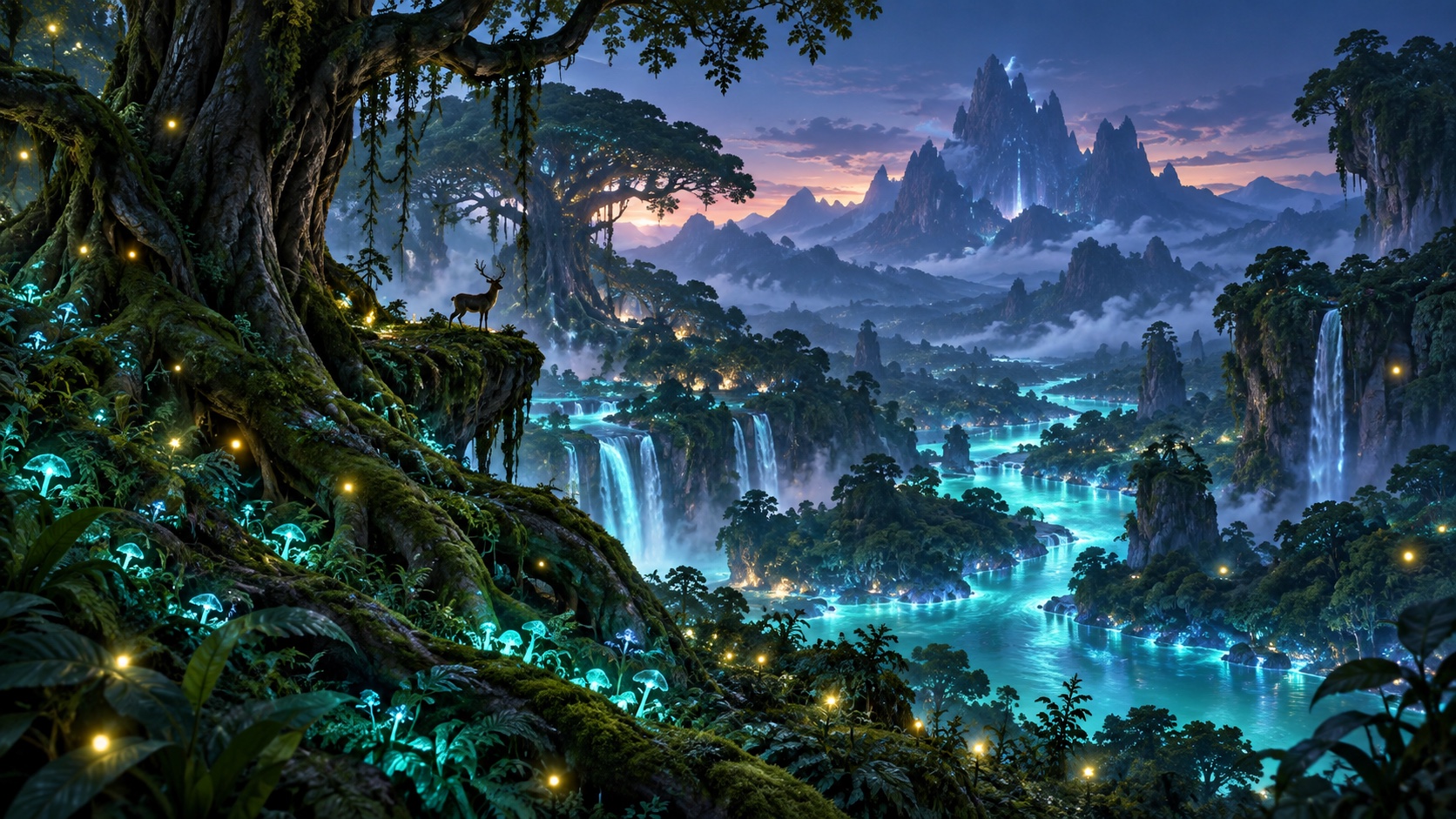
Describe a desktop, not just an image
Include the subject, lighting and style, but also consider your display shape and where icons sit. For example, place the subject on the right and leave a quieter area on the left. Review the composition before deciding to create a video version.
Check the actual output resolution
4K describes dimensions; it does not mean every model generates native 4K. Available resolutions, video durations and post-processing vary. Distinguish native generation from later upscaling, and check both the task options and the resulting file.
Creation credits are separate from lifetime Pro
AI tasks spend creation credits according to the selected model and task. Lifetime Pro unlocks desktop features, not unlimited AI generation. Personal work stays private unless you submit it to the store and it passes review.
How to get started
- Open the web studio and choose image or video generation.
- Describe your scene, then check the available model, aspect ratio, output settings and credit cost.
- Review and save the result, then sign in to the desktop app with the same account to download and apply it.
Questions and answers
Can every model generate native 4K video?
No. Check the current model's task options and distinguish native output from subsequent upscaling.
Is generated work automatically published?
No. Personal creations remain private until you choose to submit them and they pass store review.